Wednesday, October 31, 2018

Yanhua Mini ACDP Porsche module 10 details and how to use

Yanhua Mini ACDP module 10 Porsche key programming works. This post is on its details incl. images, features as well as how to use instructions.

Yanhua Mini ACDP Porsche module

1 piece Porsche BCM interface
Use to connect, fix Porsche BCM module testing point.
piece Porsche BCM interface


1 piece of Porsche key renew interface
Used to connect, fix the testing point of Porsche key.
Porsche key renew interface


3 pieces of Porsche BCM module firmware package (2 pieces of M4*12+6; 1 piece of M4*6+6)
Used to connect, fix the testing point of Porsche.

Yanhua Mini ACDP Porsche module source:

Yanhua Mini ACDP Porsche module 10 Features:
1: Free of disassembly, Solderless. 
No need to remove components, 
No need to cut the line, no risk of damage to the BCM computer board.
2: Set anti-theft data reading and writing, anti-theft data calculation, key programming in one.
3: The interface board replaces the welding wire, the pin connect with intelligent detection, 
and the data reading and writing is safe and reliable.
4: With the key refresh function, No longer afraid of loss caused by key be locked.

How to use Yanhua Mini ACDP module 9 Porsche key program tool?

Open "PC-ACDP" on your desktop or "Mini ACDP" on your phone.
It will automatically update to the newest version and you can see Porsche icon, click it.
How to use Yanhua Mini ACDP module 9 Porsche key program tool


Porsche Programming:
ICP Porsche BCM
Add key for new Porsche
Porsche key refresh
How to use Yanhua Mini ACDP module 9 Porsche key program tool


Go to " ICP Porsche BCM"
How to use Yanhua Mini ACDP module 9 Porsche key program tool

How to use Yanhua Mini ACDP module 9 Porsche key program tool


Back to click on " Add key for New Porsche" then "ICP IMMO".
How to use Yanhua Mini ACDP module 9 Porsche key program tool

How to use Yanhua Mini ACDP module 9 Porsche key program tool

How to use Yanhua Mini ACDP module 9 Porsche key program tool


Back to click on "Porsche Key refresh".
How to use Yanhua Mini ACDP module 9 Porsche key program tool


Ps: Any confusion you have, you can click on "Help" it will tell you how to do, for example:
How to use Yanhua Mini ACDP module 9 Porsche key program tool


Wednesday, October 24, 2018

BMW 35080 correct odometer with Yanhua 35080/35160 programming emulator


Yanhua 35080/35160 programming emulator


Yanhua 35080/35160 programming emulator:


Source:http://www.obdexpress.co.uk/wholesale/yanhua-35080-35160-simulator.html

Equipped with an independent programmer, it can deal with M35080/M35080-3/M35080-6/M35080V6/M35080VP /D80DOWQ/080D0WT/160DOWT/160DOWQ/35160WT* chip.

No need any other tools to do the odometer correction.


This is how to use Yanhua 35080/160 programming emulator to change mileage:


Solder the 35xx chip on the meter to the specified location of the simulator.

Pay attention to the chip direction
BMW 35080 correct  odometer with Yanhua 35080/35160 programming emulator


Connect the emulator to the mini usb cable

Pug in the computer usb interface
BMW 35080 correct  odometer with Yanhua 35080/35160 programming emulator


Establish a new folder on your Desktop

E.g. folder named “mileage modification”

Open the software files on Computer

Copy the compressed file named”35xx mileage modification tool.rar” to the “mileage modification” folder on Desktop

Extract it to the current folder

Get the 35xx mileage modification tool.exe file
BMW 35080 correct  odometer with Yanhua 35080/35160 programming emulator


Copy the original data “35080 original” bin file in the folder “English” to the “mileage modification” folder
BMW 35080 correct  odometer with Yanhua 35080/35160 programming emulator


Drag the bin file “35080 original” into the application “M35xx mileage modification tool”

Open with M35xx mileage modification tool
BMW 35080 correct  odometer with Yanhua 35080/35160 programming emulator


Enter the mileage data you want to modify as prompted

Note the mileage you wan to put with a unit like XXXkm or XXXml

Then press Enter to confirm and then the new data will be automatically generated
BMW 35080 correct  odometer with Yanhua 35080/35160 programming emulator

BMW 35080 correct  odometer with Yanhua 35080/35160 programming emulator


Delete the 35xxx simulated data 
BMW 35080 correct  odometer with Yanhua 35080/35160 programming emulator


Copy the new data generated in the”mileage modification” folder to the “35xx memory”in the U disk
BMW 35080 correct  odometer with Yanhua 35080/35160 programming emulator

Re-plug the emulator
BMW 35080 correct  odometer with Yanhua 35080/35160 programming emulator


Compare the data
BMW 35080 correct  odometer with Yanhua 35080/35160 programming emulator

BMW 35080 correct  odometer with Yanhua 35080/35160 programming emulator

BMW 35080 correct  odometer with Yanhua 35080/35160 programming emulator

BMW 35080 correct  odometer with Yanhua 35080/35160 programming emulator


If the data is the same, the operation is successful

Solder the simulator to the instrument chip location
BMW 35080 correct  odometer with Yanhua 35080/35160 programming emulator

BMW 35080 correct  odometer with Yanhua 35080/35160 programming emulator

Done! Yanhua Mini ACDP BMW 35080 emulator have written the new km successfully!

Source:http://www.mileageprogrammer.com/how-to-use-yanhua-bmw-35160-35080-emulator/

Tuesday, August 14, 2018

Programing BDC without soldering with Yanhua ACDP MINI BMW


Yanhua ACDP MINI BMW key programmer supports CAS3/CAS3+/CAS4/CAS4+/FEM/BDC by OBD without soldering/welding.


Here we show how to install BDC:


Video demo:Yanhua Mini ACDP connect to BMW FEM BDM without soldering


BDC Diagram
How to connect Yanhua Mini ACDP when program BMW BDC:


Location of EEPROM/RES


BDC electric bridge installation guide:
1. Twist two M4*16+6 copper pillars
2. Aim at the four probes roughly.
3. Aim at the pad of reset pin accurately.
4. Press the electric bridge plate and lock the copper pillar.


Puncture IC Socket Installation guide:
1. Insert direction as per the picture.
2. Before inserting and pulling out the socket, please upward loosen the nut to retract the probes into the mold in order to protect the probes.


BDC electric bridge connection guide:
Connect the offline OBD adapter with the reset pin of BDC electric bridge by using the double-head terminal cable.


http://www.obdexpress.co.uk/wholesale/yanhua-bmw-mini-acdp-key-master.html

Sunday, August 12, 2018

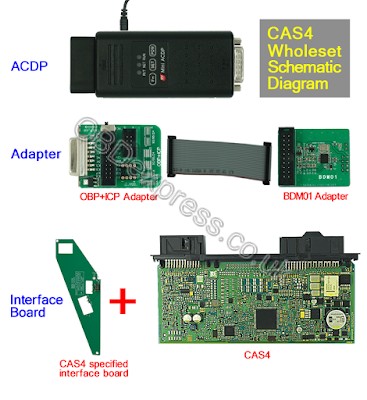
How to connect BMW CAS4 with Yanhua Mini ACDP without soldering?

here is the step-by-step guide of how to use Yanhua BMW MINI ACDP Key Programming Master connect to BMW CAS4 without soldering.
video demo:

In details:

CAS4 Wholeset Schematic Diagram:

Yanhua-Mini-ACDP-connect-to-BMW-CAS4-No-need-welding-1


CAS4 probes location schematic diagram:


Yanhua-Mini-ACDP-connect-to-BMW-CAS4-No-need-welding-2


The Procedure as shown below:

Step 1. Install Copper Pillar, use M2.5*12+6 specified copper pillar to install support frame.

Yanhua-Mini-ACDP-connect-to-BMW-CAS4-No-need-welding-3


Step 2. Install the CAS4 interface board.
Tip: Aim at the points D1\D2\D3\D4 accurately and press them, then lock the two copper pillars.
Yanhua-Mini-ACDP-connect-to-BMW-CAS4-No-need-welding-4


Step 3. Connect BDM Adapter, then plug the BDM Adapter into the CAS4 specified interface board.
Yanhua-Mini-ACDP-connect-to-BMW-CAS4-No-need-welding-5


Step 4. Connect the ACDP with OBP + ICP adapter, then finished.

Good luck 

How to solve MINI ACDP "Untrusted Enterprise Developer"?

Question :After you install ACDP APK on your IOS device, you may get this error :Untrusted Enterprise Developer.How to solve?
MINI ACDP "Untrusted Enterprise Developer"
Solution from OBDexpress.co.ukhttp://www.obdexpress.co.uk/
please follow the below steps:
Settings–Genaral–Device Management ,and vefified the APK
Done.
Hope it has helps.

Download Fail,do not exit while downloading,retey? how to do?

Question 3: If the yanhua mini acdp prompt:Download Fail,do not exit while downloading,retey? how to do ?
 yanhua mibi acdp  prompt:Download Fail,do not exit while downloading,retey?

A:
When you get this error, please click”YES” ,the APK will download automatically, and do not leave your device in Dormancy mode.


Yanhua ACDP MINI Software:where to download&how to intall

Topic:
How to install Yanhua BMW MINI ACDP Key Programmer APP on Android/IOS phone(PC version is not yet released),and import date to your PC.

ACDP Software Installation Download Guide:
Part 1:For Android
Part 2:For Iphone IOS
PDF Download:


Part 1:For Android
1, QR Code Recognition
Android-QR-code

2,Click the icon in the top right corner showed in the picture
and open it in the corresponding browser
how-to-install-mini-acdp-in-android


how-to-install-mini-acdp-in-android-2

how-to-install-mini-acdp-in-android-3

3,Click to install
how-to-install-mini-acdp-in-android-4


Download ACDP data to PC from Android Phone Manual
1: Use the data cable to connect the phone and the computer, click
“Computer”, open the icon as shown in the figure。
android-version-acdp-import-data-to-pc-1

2:Open the folder shown below:
android-version-acdp-import-data-to-pc-2

3: Find yanhua_online folder
android-version-acdp-import-data-to-pc-3

4:The data is generally defaulted to the folder shown in the
figure below, and the required data can be copied to the
desktop.
android-version-acdp-import-data-to-pc-4


Part 2:For Iphone IOS
1, QR Code Recognition

2, Click the icon in the top right corner showed in the picture
and open it in the Safari browser.
how-to-install-mini-acdp-in-ios-1

how-to-install-mini-acdp-in-ios-2

3, Click to install

how-to-install-mini-acdp-in-ios-3

4:Click “Settings” on the mobile interface, select the “General”
option
how-to-install-mini-acdp-in-ios-2

5, Select “Device Management”
how-to-install-mini-acdp-in-ios-5

6, Select the option shown below to add as a “trust device”

Download ACDP data to PC from iPhone Manual
1.Install the iTunes from Apple’s official website.
iphone-version-acdp-import-data-to-pc-1

2. Connect the iPhone by iTunes.
iphone-version-acdp-import-data-to-pc-2

3. Click the following icon
iphone-version-acdp-import-data-to-pc-1

4. Click the following icon.
iphone-version-acdp-import-data-to-pc-4

5. Click the following icon.
iphone-version-acdp-import-data-to-pc-1

6. Click the following icon,then click “Save ”
iphone-version-acdp-import-data-to-pc-6

7. Choose a folder to save the data.
iphone-version-acdp-import-data-to-pc-8

8. Find the “ACDP data” folder and open it.
iphone-version-acdp-import-data-to-pc-8

9. Open the folder which save the data.
iphone-version-acdp-import-data-to-pc-9

10. Open the“Custom” folder.
iphone-version-acdp-import-data-to-pc-10

11. The data of 8-pin IC is saved in the “ic” .
iphone-version-acdp-import-data-to-pc-11

iphone-version-acdp-import-data-to-pc-12

12. BMW and the other models data is saved in “ATmatch ”
folder.
iphone-version-acdp-import-data-to-pc-13


iphone-version-acdp-import-data-to-pc-14

 Done!
Best regard!